AWS Media Services integration
The purpose of this guide is to help you integrate AWS MediaPackage and MediaConvert with the Cloud DRM service. Cloud DRM supports the CPIX 2.3 specification, which enables secure encryption of your content.
Overview
To integrate Cloud DRM with AWS Media Servies for securing your content you must perform two steps:
- Set up key delivery, using:
- AWS Lambda, or
- direct API
- Configure AWS Media Package and/or Media Convert
SPEKE
The Cloud DRM service uses SPEKE API for delivering keys to the origin that encrypts the video streams. SPEKE is an XML exchange protocol that uses the CPIX XML scheme.
SPEKE specification: https://docs.aws.amazon.com/speke/latest/documentation/speke-api-specification.html
In a SPEKE request, the origin requests ContentKey and Protection Headers from the DRM systems identified by global GUIDs. Cloud DRM supports the following three DRM systems:
| System | GUID |
|---|---|
| Widevine | edef8ba9-79d6-4ace-a3c8-27dcd51d21ed |
| FairPlay | 94ce86fb-07ff-4f43-adb8-93d2fa968ca2 |
| PlayReady | 9a04f079-9840-4286-ab92-e65be0885f95 |
GUIDs above should be passed in the systemId attribute of the DRMSystem element of a SPEKE request.
We provide a simple Lambda code that can be used for integrating AWS Media Services (Media Convert or Media Package) with our SPEKE endpoint. For different origins, including on-premise solutions, the SPEKE API should be called directly. SPEKE API returns a set of fields, including a content key and PSSH (Protection System Specific Header) necessary to encrypt streams.
SPEKE endpoint URL is available in the Video Kit console as SPEKE API URL.
Parameters:
- BrandGuid - a querystring parameter - an identifier of your application (you should also use it for the license acquisition as described above). This identifier is created by Big Blue Marble and identifies the video service.
- Authorization: X-Api-Key - an HTTP header - the string obtained from Cloud Video Kit web console at https://console.videokit.cloud/dashboard/manage?tab=keys
AWS MediaConvert & MediaPackage for Live
What is a SpekeGateway?
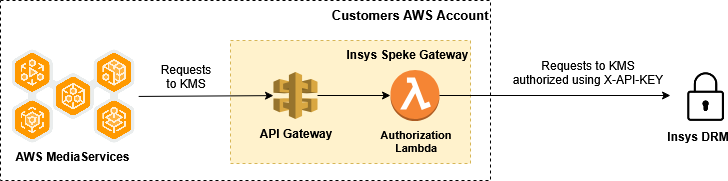
Big Blue Marble SpekeGateway is a serverless service that adds the authorization layer in the communication between AWS Media Services and Cloud DRM KMS. The services are built with API Gateway and Lambda Function as presented on the diagram below. API Gateway takes local requests from Media Services and forwards them to Cloud DRM, including the appropriate X-API-KEY headers, by using Lambda. The service should be deployed on the same customer account where Media Services are used.
Deployment using AWS console
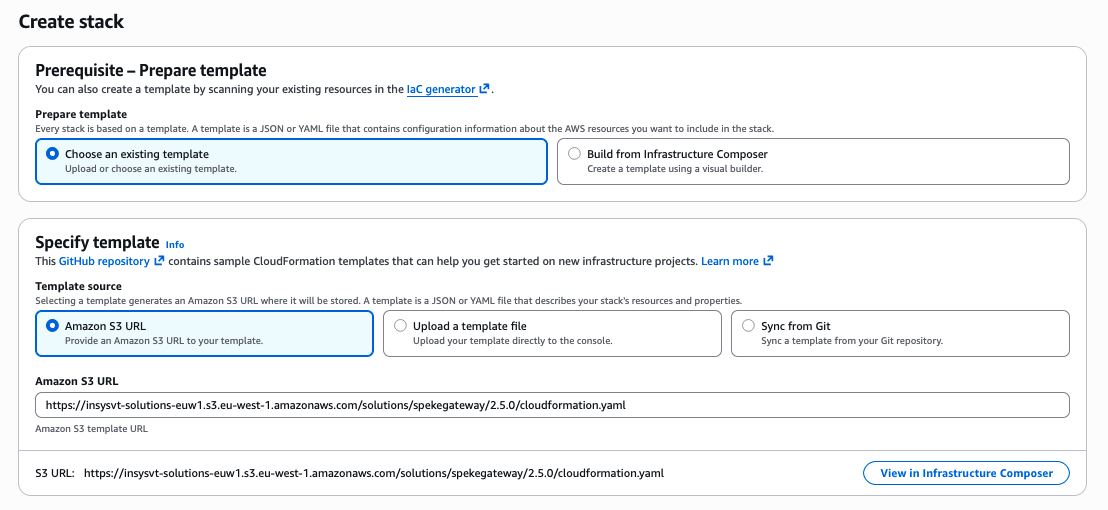
Cloudformation Template URL https://insysvt-solutions-euw1.s3.eu-west-1.amazonaws.com/solutions/spekegateway/2.5.0/cloudformation.yaml
The current SpekeGateway version is 2.5.0. If you already run an older version, you do not need to recreate anything - update the existing stack with the URL above and keep your current parameter values. The stack outputs (LiveSpekeInvokeUrl, VodSpekeInvokeUrl and the IAM role ARNs) do not change, so no reconfiguration is needed in MediaPackage or MediaConvert.
When using AWS Media Services for content encryption, you do not need to handle SPEKE requests and responses directly. AWS Media Package or AWS Media Convert generate SPEKE XMLs and consume responses. AWS Media Package and AWS Media Convert only need the URL to API Gateway that passes SPEKE requests to Cloud DRM.
Here is the list of the parameters with mock-up test values and information where you can find your configuration values:
| Key name | Example value | Your value |
|---|---|---|
| AuthenticationMethod | X-API-KEY | X-API-KEY |
| ClientId | (leave empty) | (leave empty) |
| ClientSecret | (leave empty) | (leave empty) |
| TokenUrl | (leave empty) | (leave empty) |
| ApiKey | KGFDG8D976F5D4MC3927022233TF173 | API key with the DRM Packager role from Video Kit console |
| SpekeUrl | https://tenantname.api.drm.cloud/kms/speke?tenantId=abcdef-1234-5678-90ab-cdef1234 | SPEKE API URL from Video Kit console |
| GatewayType | (leave as is) | (leave as is) |
| AWSCloudType | GENERAL | GENERAL for all standard AWS regions; EUSC only when deploying into the AWS European Sovereign Cloud |
| ApiGatewaySecurityPolicy | (leave as is) | (leave as is) |
| CreateMediaServiceRoles | (leave as is) | (leave as is) |
| EnableGatewayLogging | (leave as is) | (leave as is) |
| LambdaLoggingLevel | (leave as is) | (leave as is) |
The stack creates its own AWS Secrets Manager secret and stores the ApiKey, ClientId and ClientSecret values there. The Lambda reads them from that secret at runtime, so they are never placed in the Lambda environment variables. The secret belongs to the stack and is removed together with it.
To rotate a credential, update the stack with the new parameter value - the secret is rewritten from the parameters on every stack update. Keep in mind that Secrets Manager is billed per stored secret.
Deployment steps
Video Kit console
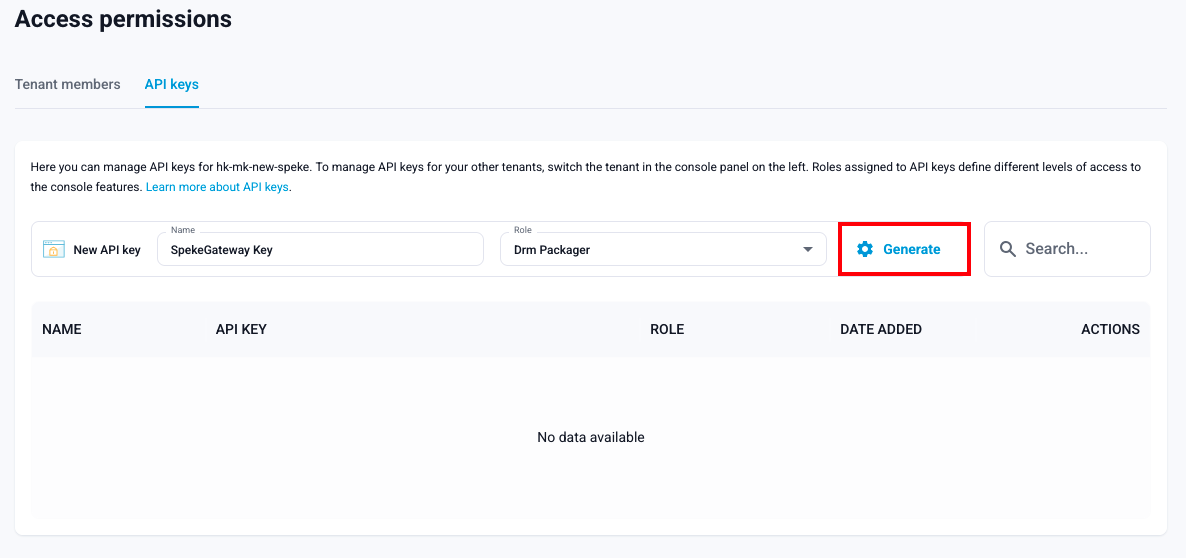
- Generate an X-API-KEY with the DRM Packager role
DRM Packager is the role intended for exactly this integration: it allows nothing but the content key exchange (SPEKE 1.0, SPEKE 2.0 and CPIX 2.3 requests to the KMS API), which is the only thing SpekeGateway ever does. It grants no access to the console, to DRM settings, statistics or secrets, so the key stored in your AWS account carries the least possible privilege.
A DRM Admin key also works, but it is far broader than this integration needs. If you already run SpekeGateway with a DRM Admin key, you can narrow it without touching the CloudFormation stack: change the role on the existing key in the console - the key value stays the same, so no redeployment is needed. That change has to be made by a member holding the DRM Admin role, because the console does not let you modify a key whose current role you are not allowed to assign yourself.
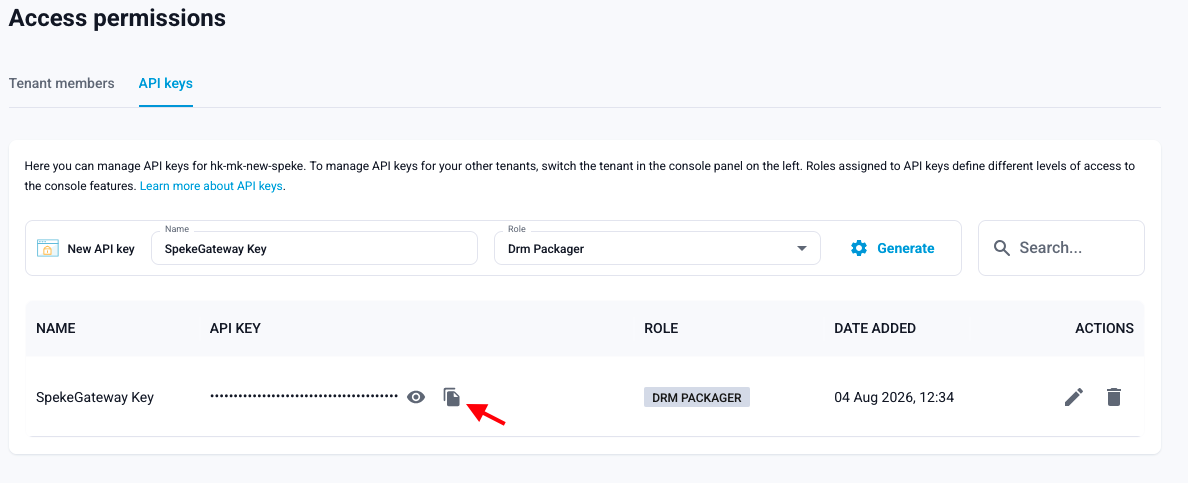
- Copy the key value
AWS console
- Go to the Cloudformation console using your web browser.
- Click the
Create stackbutton and choose theWith new resources (standard)option from the list.

- In the Create stack form, choose the Amazon S3 URL for the Template Source option and enter the link to the Cloudformation template provided by Big Blue Marble into the input field.
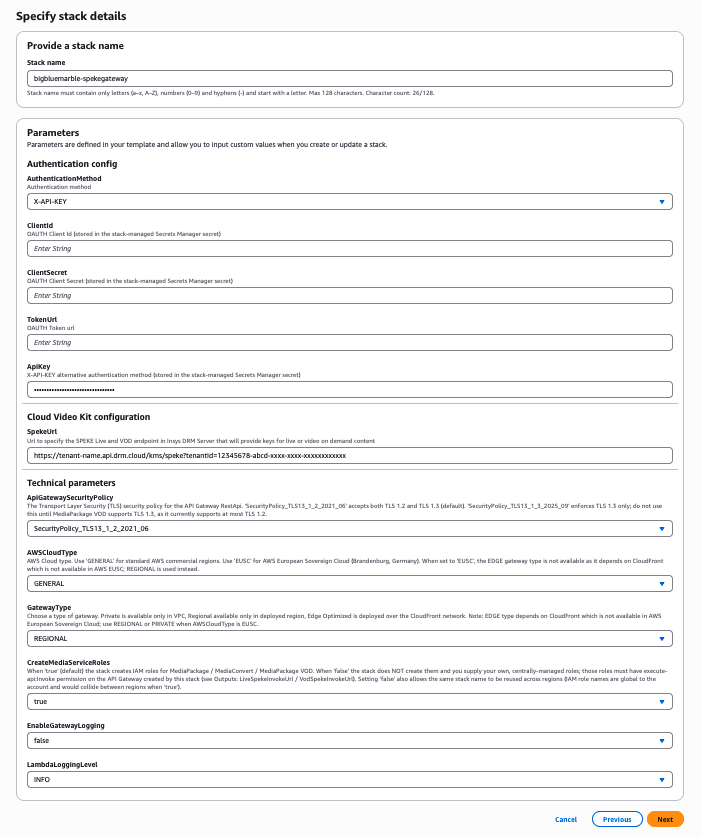
- On the next page, fill up the stack details:
- Stack Name - e.g. bigbluemarble-spekegateway
- AuthenticationMethod - OAUTH or X-API-KEY, please leave X-API-KEY
- ClientId and ClientSecret - Parameters required to authenticate with the Cloud DRM (provided by Big Blue Marble), mandatory for OAUTH AuthenticationMethod
- TokenUrl - Authentication endpoint from Video Kit console, mandatory for OAUTH AuthenticationMethod
- ApiKey - API Key from Video Kit console, mandatory for X-API-KEY AuthenticationMethod
- SpekeUrl - Cloud DRM SPEKE endpoint for Live and VOD (provided by Big Blue Marble)
- GatewayType - Choose the gateway type. "Private" is available only in VPC, "Regional" is available only in the deployed region, and "Edge Optimized" is deployed over the CloudFront network.
- AWSCloudType - GENERAL for all standard AWS regions, EUSC for the AWS European Sovereign Cloud. In EUSC the "Edge Optimized" gateway type is not available, because it relies on CloudFront - use "Regional" or "Private" there.
- ApiGatewaySecurityPolicy - The minimum TLS version accepted by the API Gateway. The default
SecurityPolicy_TLS13_1_2_2021_06accepts TLS 1.2 and TLS 1.3.SecurityPolicy_TLS13_1_3_2025_09enforces TLS 1.3 only and is the setting to choose when your workflow has to meet the C2PA security requirements. Note that MediaPackage VOD currently negotiates at most TLS 1.2, so a TLS 1.3-only gateway rejects its key requests - if you use MediaPackage VOD, keep the default policy until AWS adds TLS 1.3 support there. - CreateMediaServiceRoles - Leave
trueto let the stack create the MediaPackage, MediaConvert and MediaPackage VOD IAM roles for you. Set it tofalseonly if you supply your own centrally managed roles; those roles must be allowed toexecute-api:Invokethis stack's API Gateway (see theLiveSpekeInvokeUrlandVodSpekeInvokeUrloutputs). Because IAM role names are account-global,falseis also what lets you deploy the same stack name in more than one region. - EnableGatewayLogging - Set this value to true if you want to store the logs from the ApiGateway in CloudWatch Logs (requires properly configured IAM Role for Cloudwatch Logs in API Gateway settings)
- LambdaLoggingLevel - DISABLED, INFO or DEBUG. Credentials and content keys are never written to the logs: authorization headers are masked and the key bytes in SPEKE/CPIX responses are replaced with
***, at every logging level.
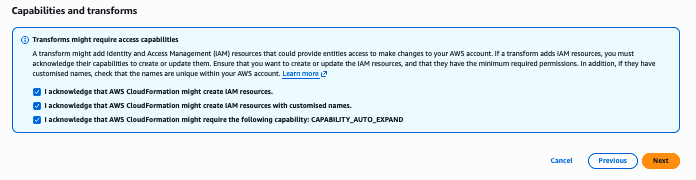
- Go to the next page and check if all parameters are correct. At the bottom of the page, check all the capability boxes - the stack creates IAM roles with custom names and uses a transform, so all three are required - then continue to the review page and click Submit.
- Cloudformation will create a new stack with all required resources. Wait until the process is finished.

- Check the output parameters of the created stack. Note down the parameters - they will be necessary in the Media Services configuration.
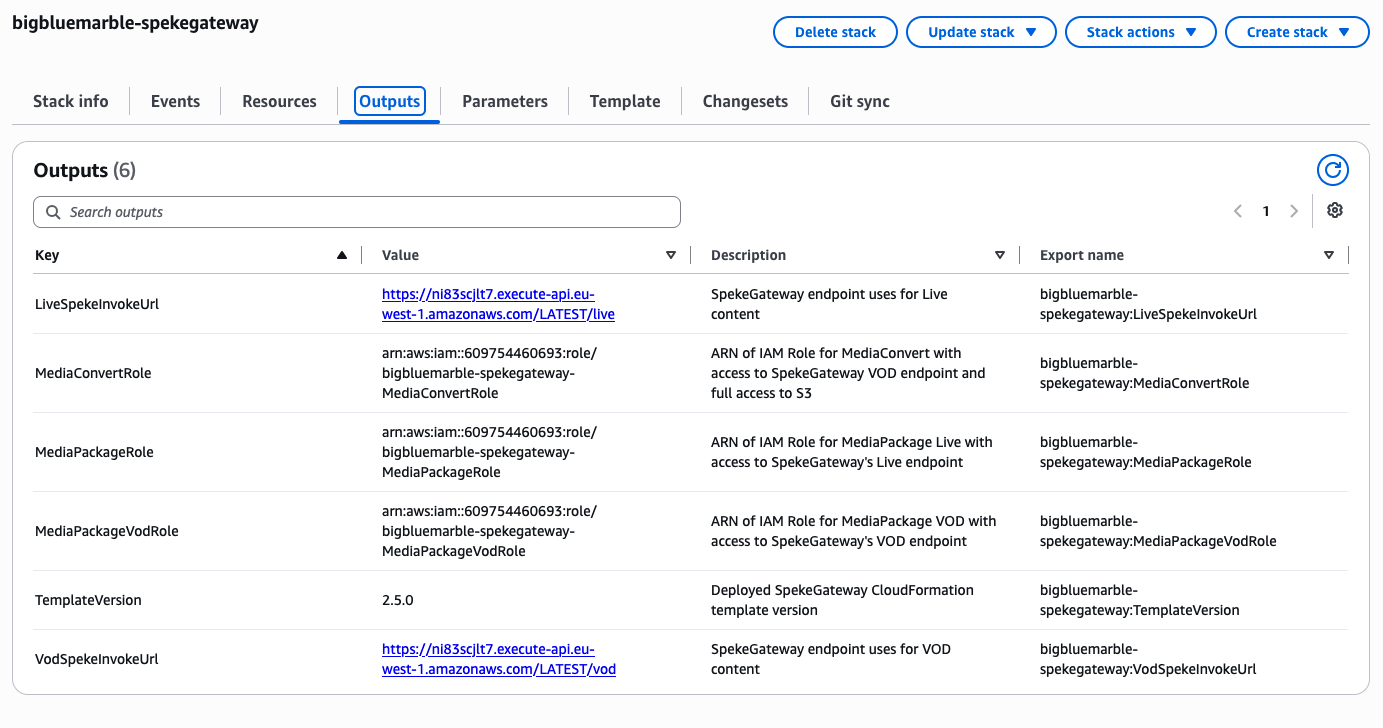
The stack publishes the following outputs:
| Output | Purpose |
|---|---|
| LiveSpekeInvokeUrl | Key Server URL for Live (MediaPackage, MediaLive) |
| VodSpekeInvokeUrl | Key Server URL for VOD (MediaPackage VOD, MediaConvert) |
| MediaPackageRole | Role ARN for MediaPackage Live |
| MediaConvertRole | Role ARN for MediaConvert |
| MediaPackageVodRole | Role ARN for MediaPackage VOD |
| TemplateVersion | The deployed SpekeGateway version, so you can confirm which version a stack runs |
The three role outputs are only present when CreateMediaServiceRoles is true. If you set it to false, use the ARNs of your own roles wherever this guide refers to MediaPackageRole, MediaConvertRole or MediaPackageVodRole.
AWS MediaPackage for VOD
Packaging groups
Create a Packaging group configuration with your chosen name:
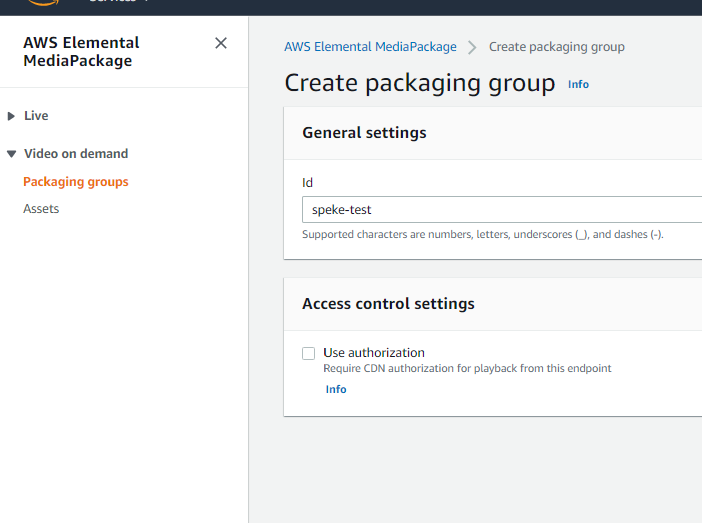
Next, edit the configuration for the packaging group. Add two configurations for the DASH and HLS outputs.
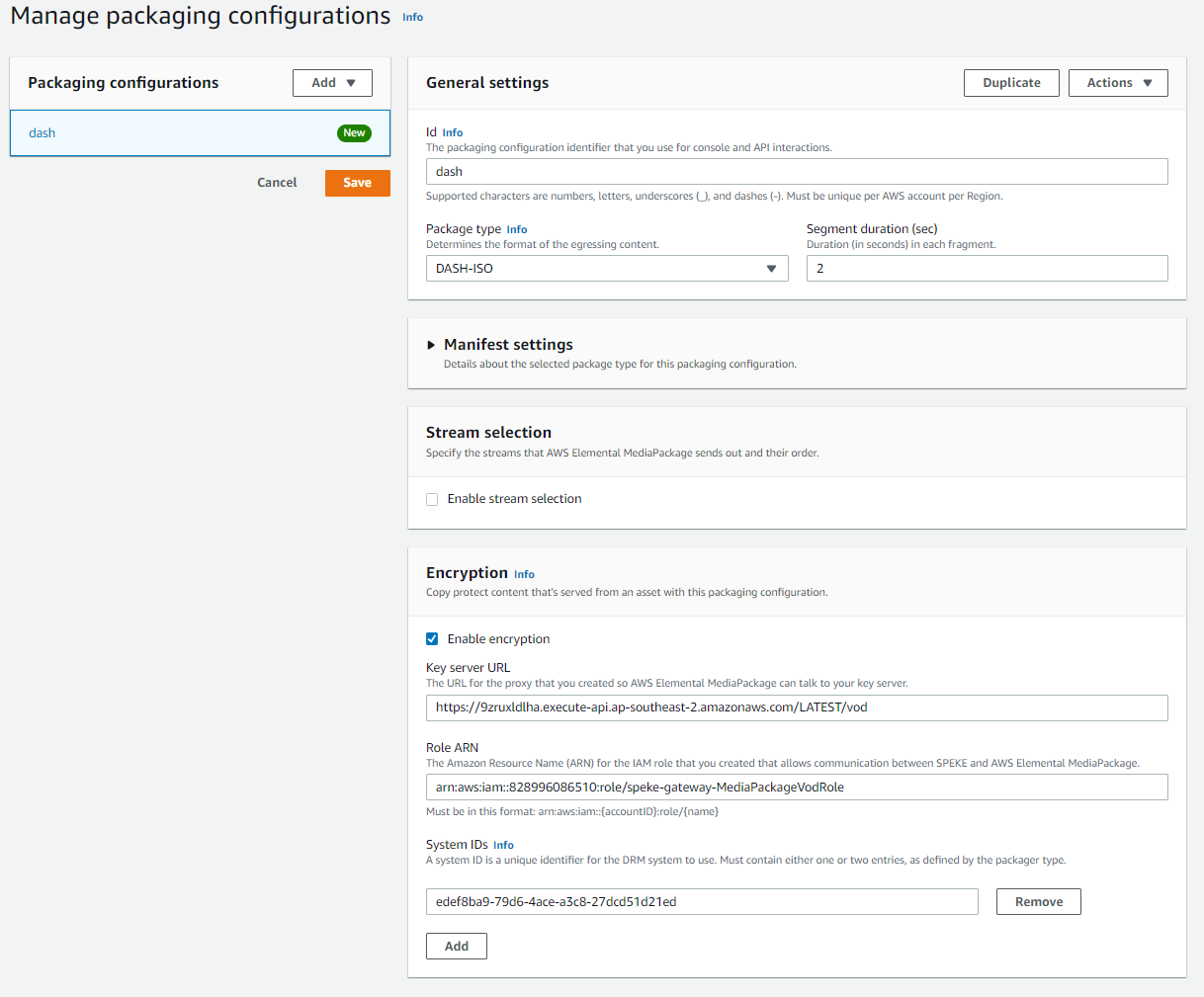
DASH with Widevine and PlayReady
- Id: your chosen name for the Dash configuration
- Package type: DASH-ISO
- Encryption: Enable it to be able to use the DRM.
- Key Server URL: Enter the value of VodSpekeInvokeUrl that you can find in Clouformation’s Output Parameter of SpekeGateway stack (e.g. https://9zruxldlha.execute-api.ap-southeast-2.amazonaws.com/LATEST/vod)
- Role ARN: Enter the value of the MediaPackageVodRole parameter that you can find in Clouformation’s Output Parameter of SpekeGateway stack (e.g. arn:aws:iam::1234567890:role/speke-gateway-MediaPackageVodRole)
- System IDs: IDs for the selected DRM system. For Widevine, it is edef8ba9-79d6-4ace-a3c8-27dcd51d21ed. For PlayReady it is 9a04f079-9840-4286-ab92-e65be0885f95. It's a common practice to add both Widevine and PlayReady to DASH stream.
Example of sample configuration for the DASH endpoint:
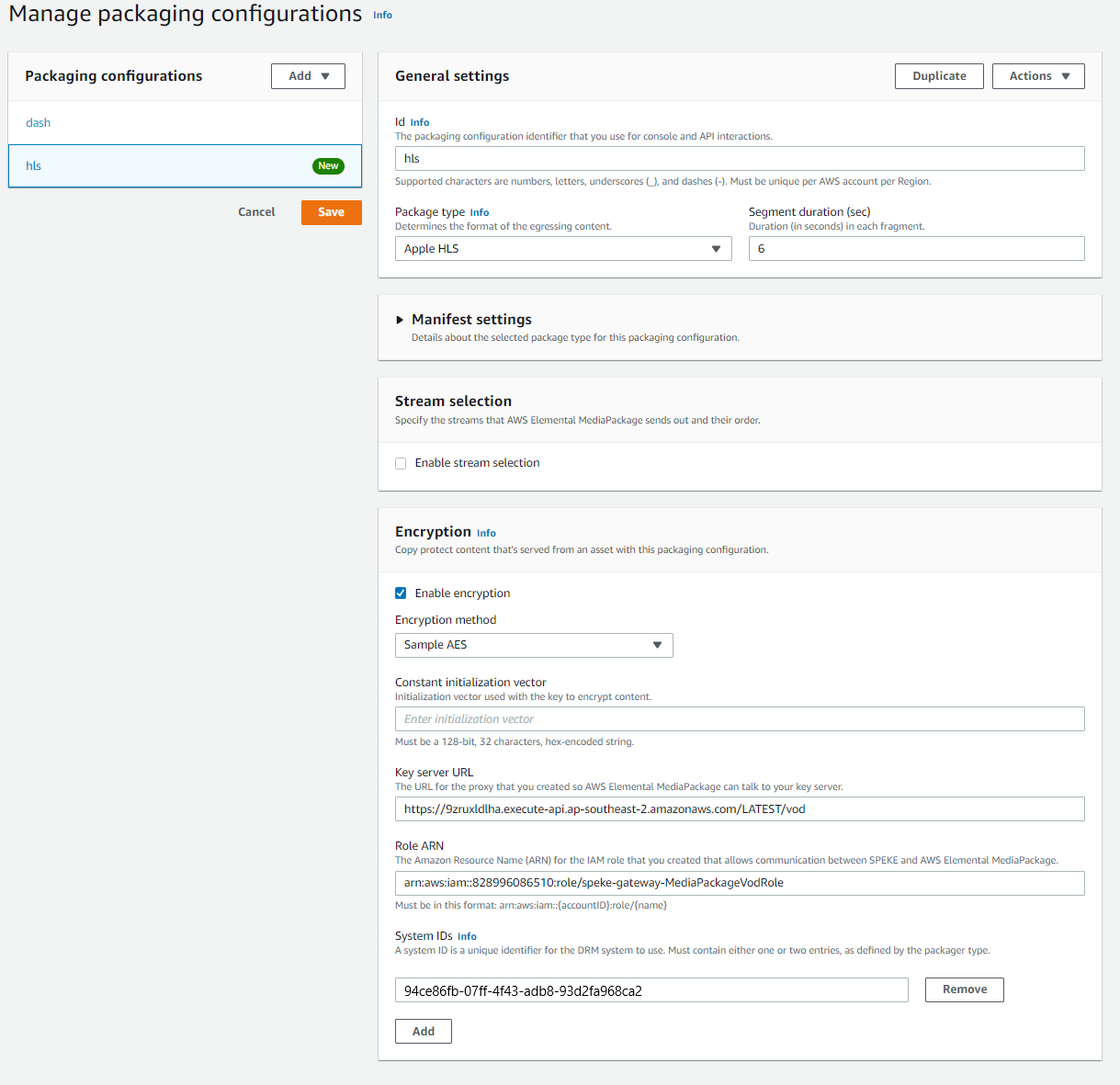
HLS with FairPlay
- Id: Your chosen name for the HLS configuration
- Package type: Apple HLS
- Encryption: Enable it to be able to use the DRM.
- Encryption method: sample AES
- Key Server URL: Enter the value of VodSpekeInvokeUrl that you can find in Clouformation’s Output Parameter of the SpekeGateway stack (e.g. https://9zruxldlha.execute-api.ap-southeast-2.amazonaws.com/LATEST/vod)
- Role ARN: Enter the value of the MediaPackageVodRole parameter that you can find Clouformation’s Output Parameter of the SpekeGateway stack (e.g. arn:aws:iam::1234567890:role/speke-gateway-MediaPackageVodRole)
- System IDs: IDs for the selected DRM system. For FairPlay, it is 94ce86fb-07ff-4f43-adb8-93d2fa968ca2 (lower case)
Here is an example of sample configuration for the HLS endpoint:
Ingesting assets in AWS MediaPackage
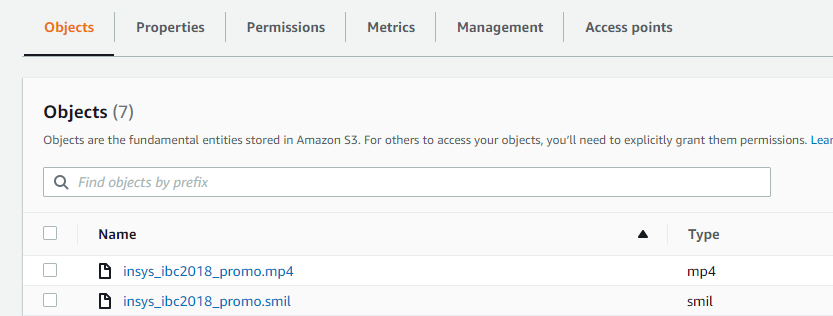
In order to ingest the asset from the S3 bucket, you need to create a smil file describing the asset. Here is an example of a smil file:
<?xml version="1.0" encoding="utf-8"?>
<smil>
  <body>
    <switch>
      <video src="06000000-a9fe-0a58-0a37-08dcff18b8d4_360p.mp4" includeAudio="false" />
      <video src="06000000-a9fe-0a58-0a37-08dcff18b8d4_576p.mp4" includeAudio="false" />
      <video src="06000000-a9fe-0a58-0a37-08dcff18b8d4_720p.mp4" includeAudio="false" />
      <video src="06000000-a9fe-0a58-0a37-08dcff18b8d4_1080p.mp4" systemLanguage="eng" audioName="audio" />
    </switch>
  </body>
</smil>
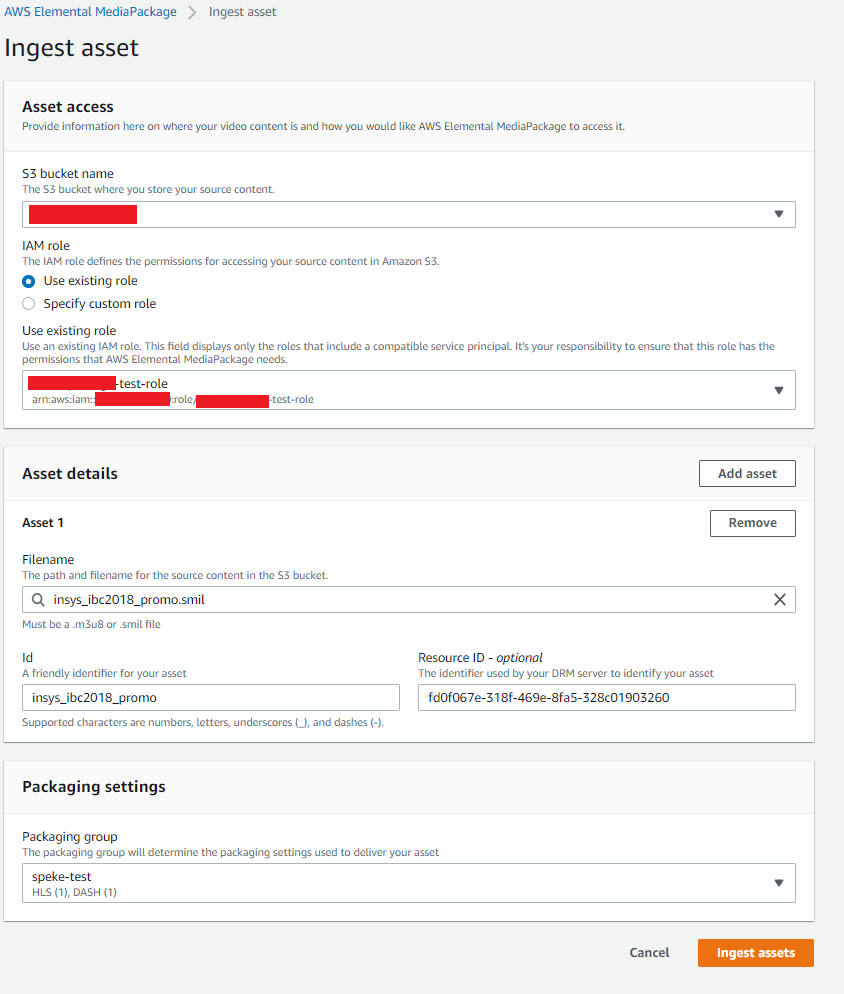
You need to have an smil file for every asset that you want to package:
Go to the Assets tab and proceed to Ingest Asset.
- S3 bucket name: bucket with the desired source material
- IAM role: ARN of IAM role that has read access to the provided S3 bucket
- Filename: an smil file describing the asset
- Id: an identifier for the asset
- Resource Id: It can be a random guid.
- Packaging group: Choose the previously created packaging group.
You need to have an smil file for every asset that you want to package: