Ateme NEA-DVR
The purpose of this document is to provide information on integrating Ateme’s NEA-DVR with Big Blue Marble (formerly Insys) Cloud DRM service.
Cloud DRM service supports CPIX for obtaining keys required to encrypt content using Ateme’s NEA-DVR packager.
Scrambling server
In order to use the Big Blue Marble DRM cloud service, the Scrambling server needs to be configured using the OTT Scrambling page of NEA-DVR GUI.
- After logging to NEA-DVR’s GUI, navigate to Services → Scrambling.
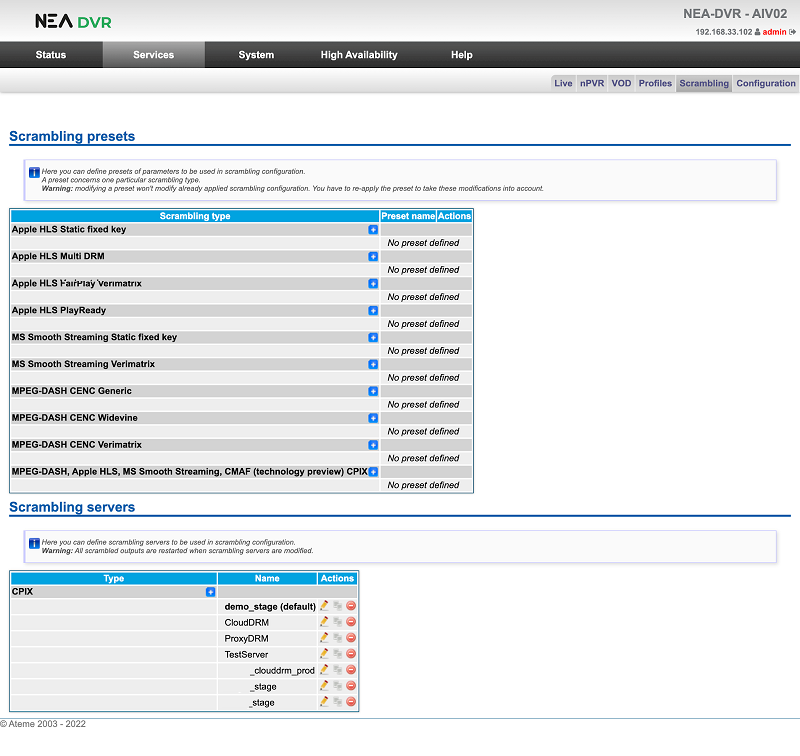
- In the Scrambling servers section click the
+button (next to CPIX type) to add a new Scrambling server.
In the New scrambling server configuration dialog enter:
- Name of the configuration
- URI provided by Big Blue Marble
- Timeout (optional)
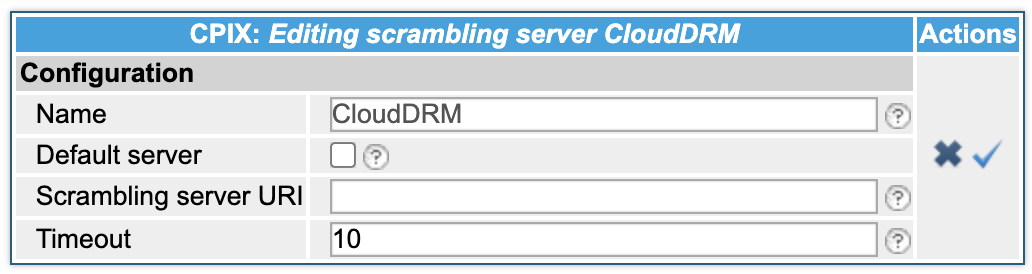
- Apply the changes by clicking the check icon.
The newly configured CPIX server can be used for configuring a Scrambling preset or direct configuration of scrambling on a channel.
Enabling CPIX for Stream Adaptations
In order to use CPIX for scrambling, navigate to the Profiles Management page of the NEA-DVR GUI (Services → Profiles).
- On the list of Stream Adaptations, find the Stream Adaptation for which you want to use CPIX and click the pencil icon.
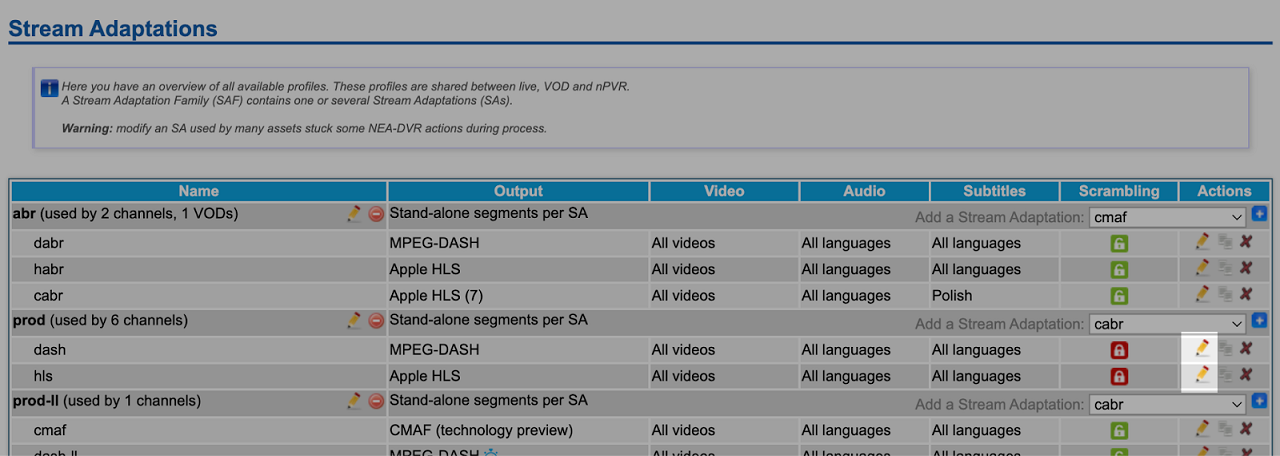
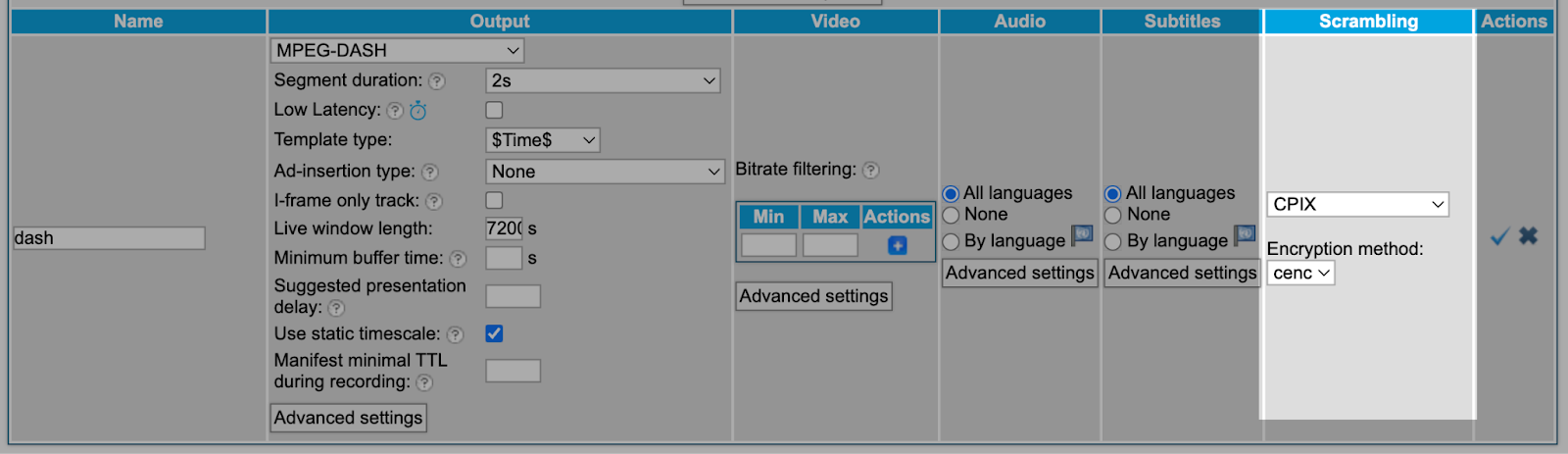
- In the Stream Adaptation edit dialog, in the Scrambling section, select CPIX and, if required, the proper encryption method
- For MPEG-DASH:
- For HLS:
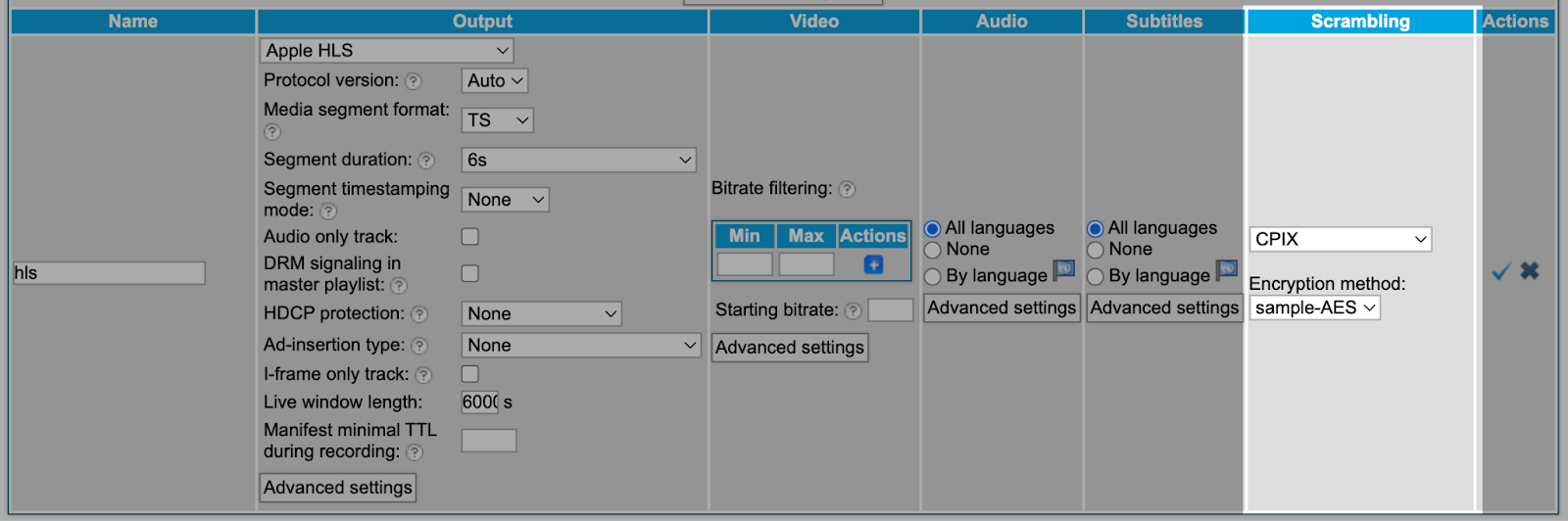
- For MS Smooth Streaming:

- Apply the changes by clicking the check button.
After selecting CPIX for stream adaptations, channels can be encrypted with the Big Blue Marble Cloud DRM service.
Encryption using Scrambling preset
Configuring Scrambling preset
Navigate to the OTT Scrambling page of the NEA-DVR GUI (Services → Scrambling).
In the Scrambling presets section click the + button (next to CPIX scrambling type) to add a new Scrambling preset.
In the New scrambling preset configuration dialog enter:
- Name of the preset
- ID, which is the CPIX id of an asset (standard GUID form)
- Key rotation period (optional, default no rotation)
- Scrambling server - select the server configured in the Scrambling server configuration section from the drop-down list
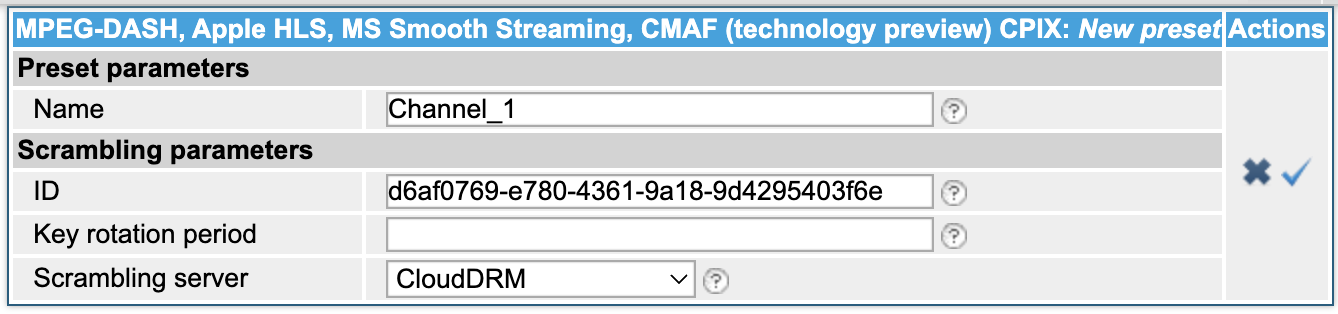
Save changes by clicking Apply.
Selecting Scrambling preset
Navigate to the Live configuration page of the NEA-DVR GUI (Services → Live), find a channel for which you want to assign scrambling preset and click the lock icon.
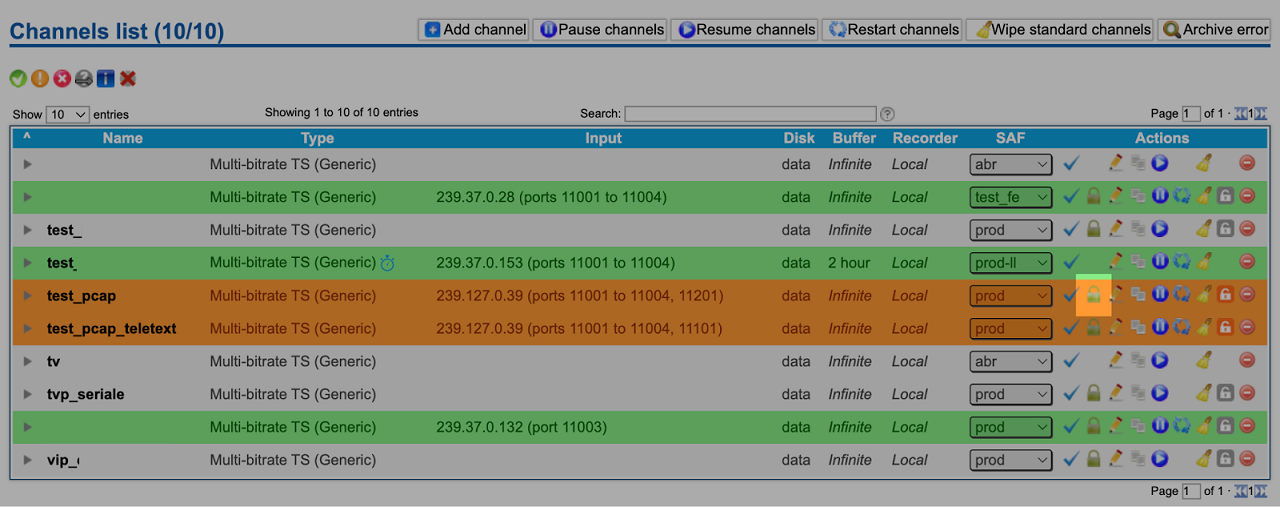
In the Channel scrambling configuration dialog, select the preset created in Configuring Scrambling preset and click the + icon.
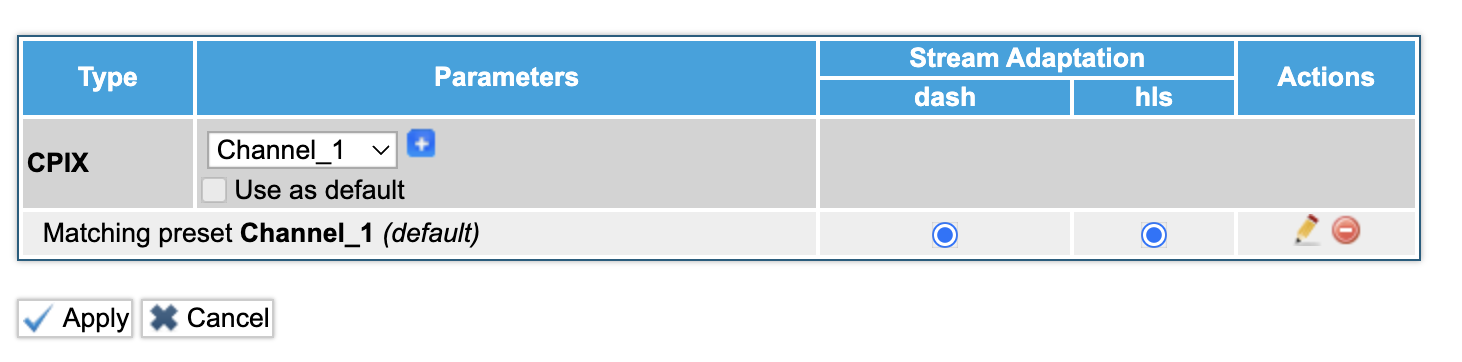
Save changes by clicking Apply.
Encryption using direct channel configuration
- Navigate to the Live configuration page of the NEA-DVR GUI (Services → Live), find a channel for which you want to use the CPIX scrambling server and click the lock icon.
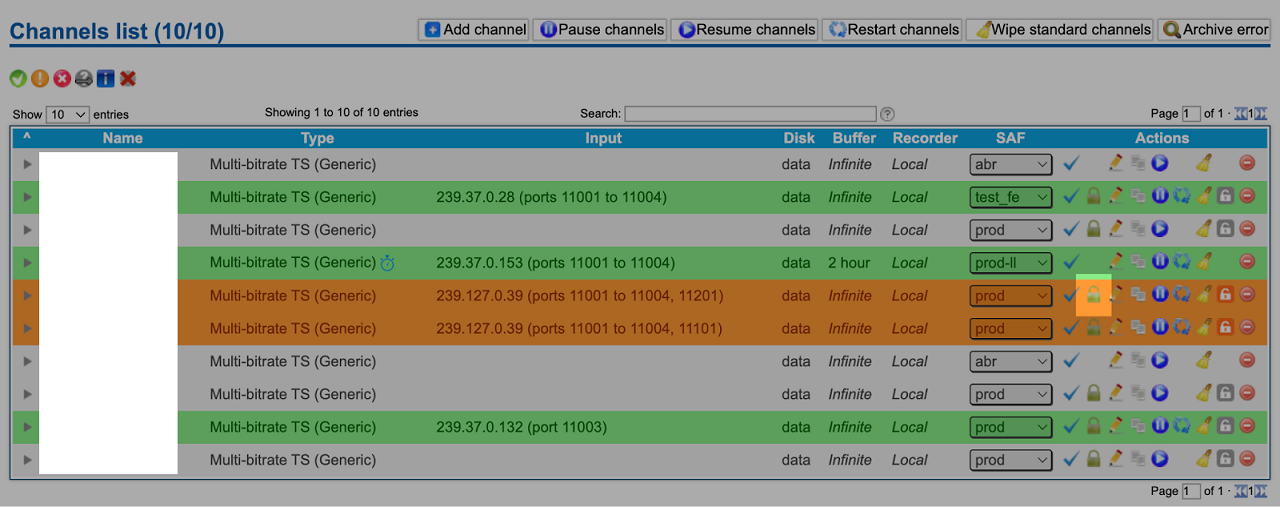
- In the Channel scrambling configuration dialog, select – New set – and click the
+icon. This will show the CPIX parameters configuration similar to the New scrambling preset configuration.

- Enter:
- ID, which is the CPIX ID of an asset (standard GUID form)
- Key rotation period (optional, default no rotation)
- Scrambling server - select the server configured in the Scrambling server section from the drop-down list
- Apply the changes by clicking the check icon.
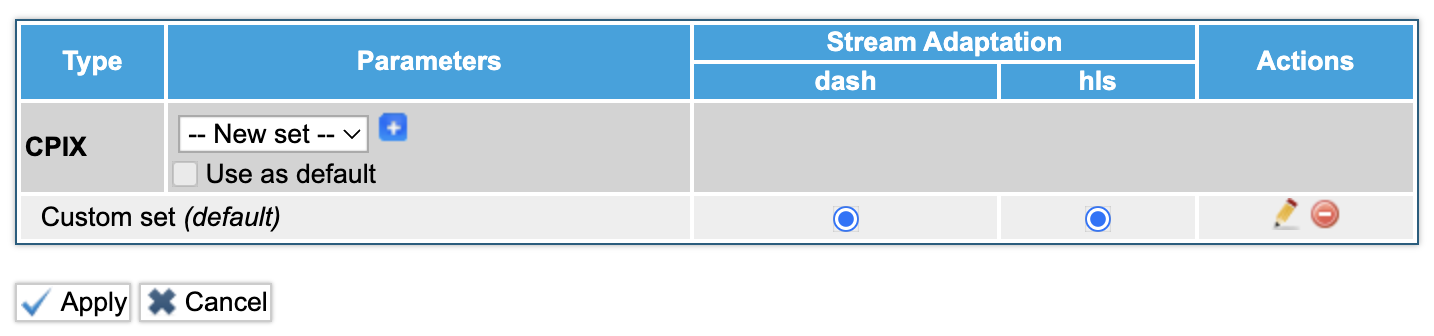
- Save changes by clicking Apply.