FairPlay Streaming certificate
Overview
FairPlay Streaming (FPS) is Apple's DRM system for protecting video content on Apple devices. Unlike other DRM systems, FairPlay requires the content owner to issue a certificate. This guide will walk you through the process of getting a FairPlay certificate.
Prerequisites
- Active Apple Developer account with FairPlay Streaming access
- OpenSSL installed on your machine
- Secure storage for private keys and passphrases
If you still need program enrollment or the FPS deployment package from Apple, see Apple Developer Program enrollment and FairPlay Streaming.
Enrolling in the Apple Developer Program is necessary to publish any app to the App Store.
Step 1: Generate private keys and CSRs
You must generate two RSA key pairs:
- 1024-bit key
- 2048-bit key
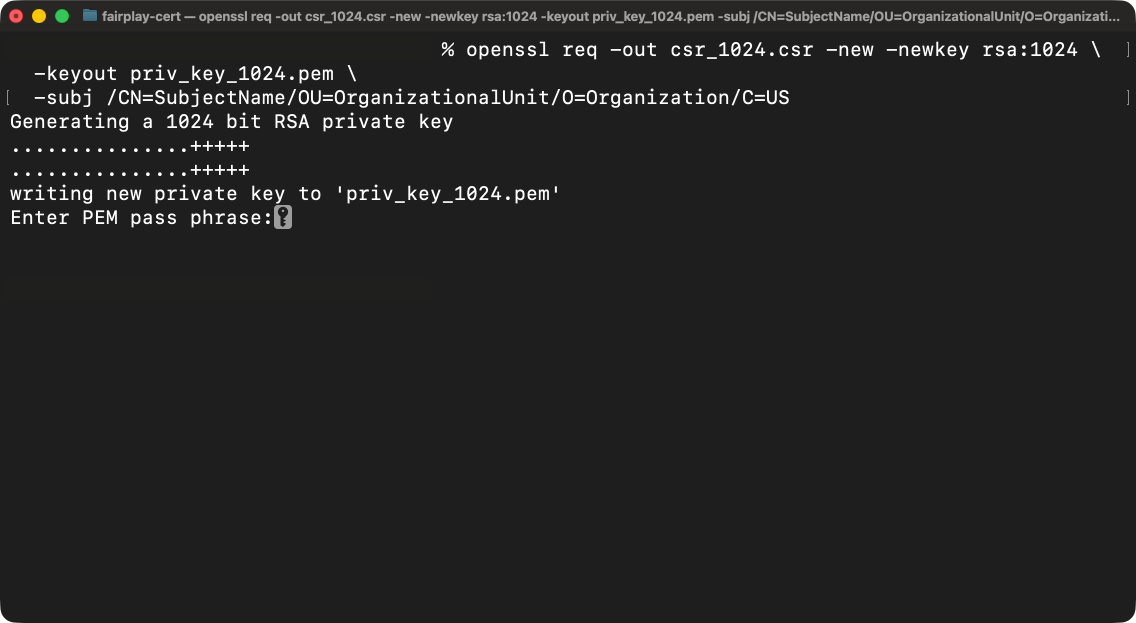
During generation, OpenSSL will prompt you to enter a passphrase that protects the private key. Make sure to store the passphrase securely.
A Certificate Signing Request (CSR) is a standardized file you send to a certificate authority so they can issue a certificate tied to your key pair. It contains your public key and identifying details, but not your private key.
1.1 Generate a 1024-bit key and CSR
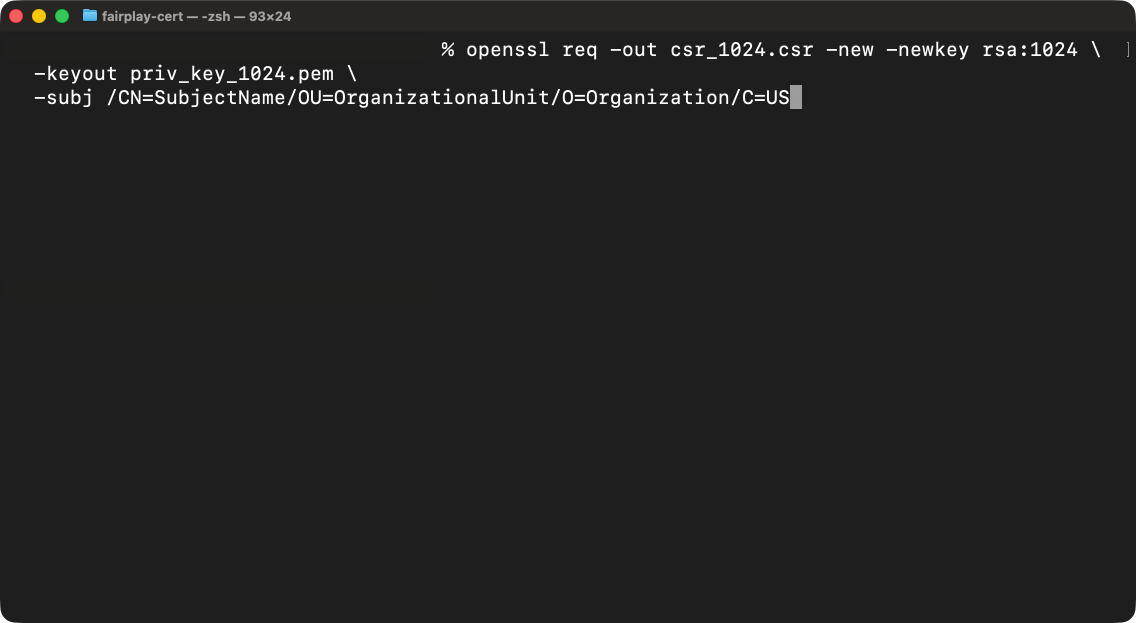
Open the terminal and use this snippet:
openssl req -out csr_1024.csr -new -newkey rsa:1024 \
  -keyout priv_key_1024.pem \
  -subj "/CN=SubjectName/OU=OrganizationalUnit/O=Organization/C=US"
Enter the passphrase, then verify the passphrase by typing it again.
1.2 Generate a 2048-bit key and CSR
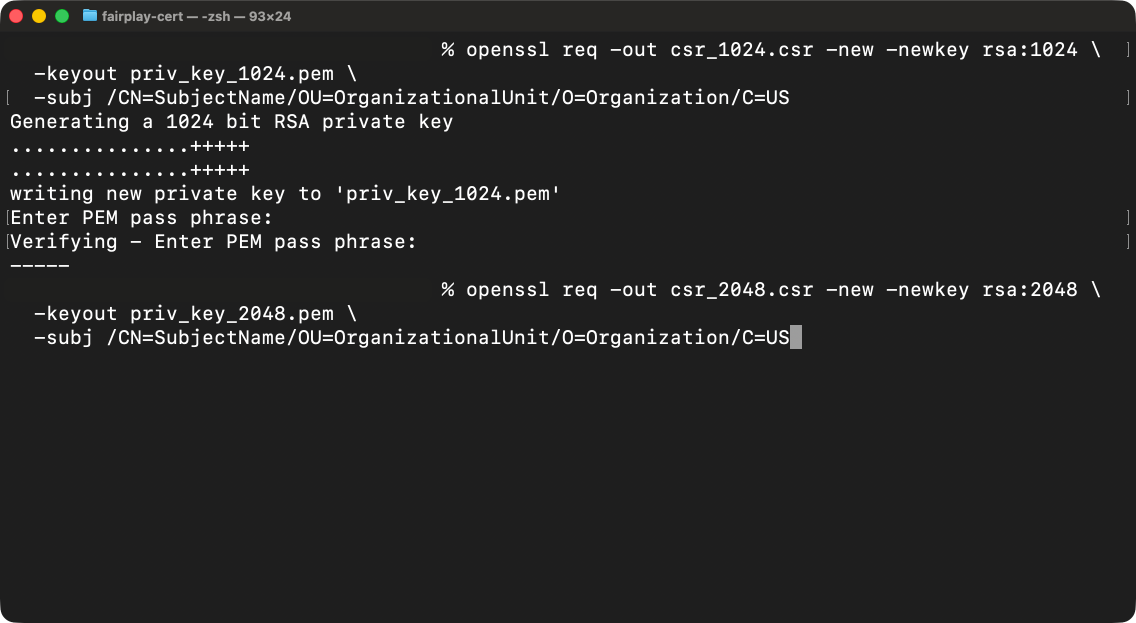
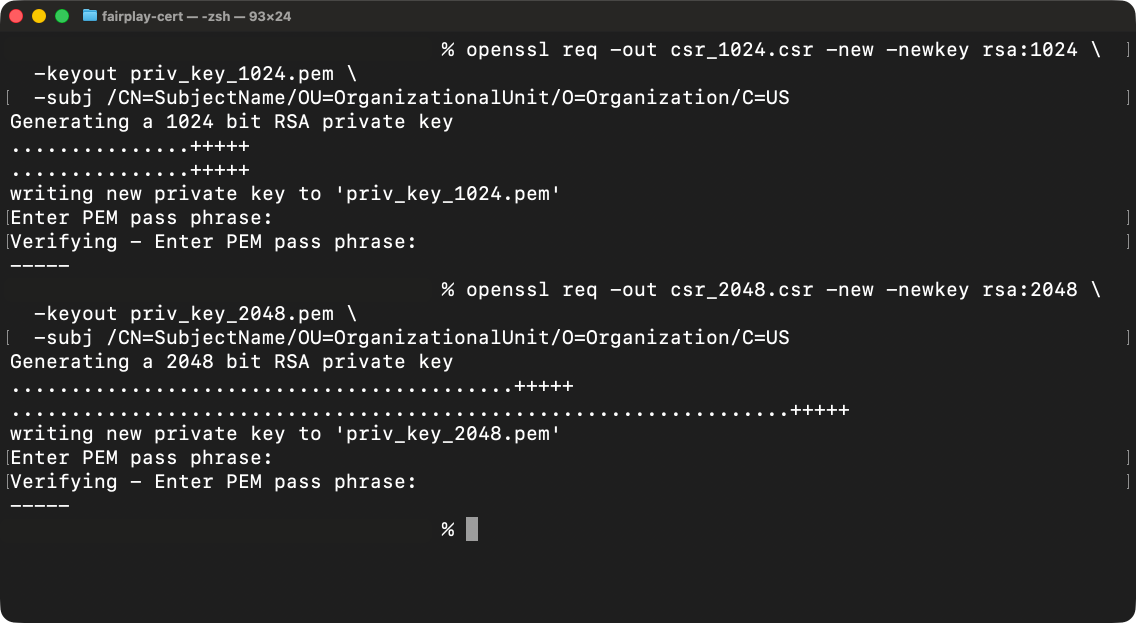
Next, do the same for the 2048-bit key.
openssl req -out csr_2048.csr -new -newkey rsa:2048 \
  -keyout priv_key_2048.pem \
  -subj "/CN=SubjectName/OU=OrganizationalUnit/O=Organization/C=US"
Files produced locally
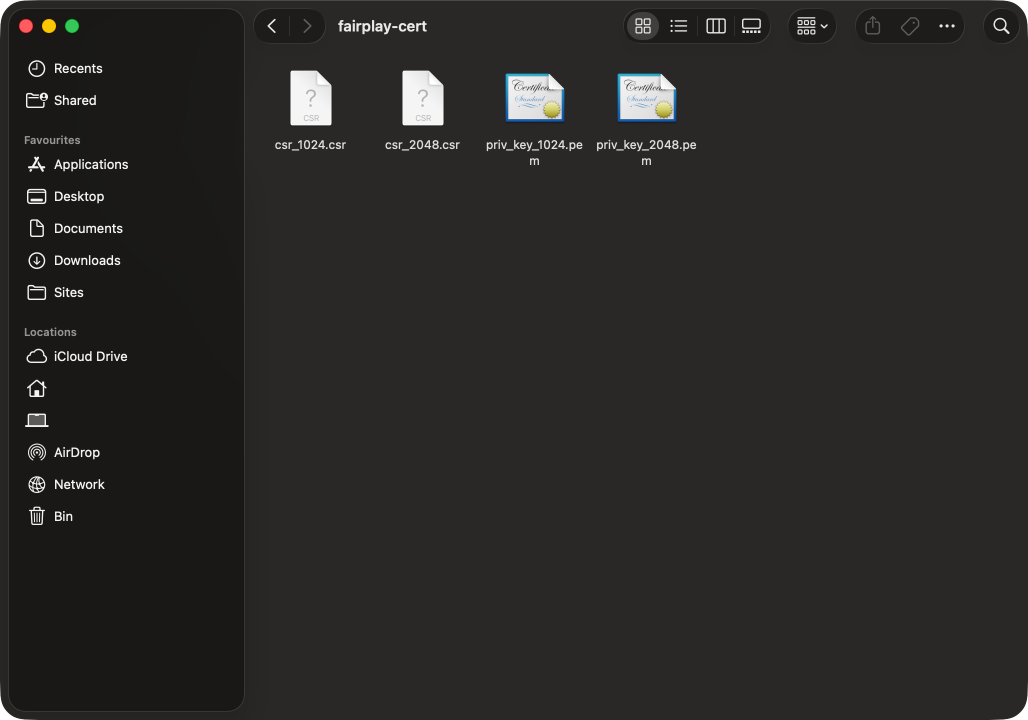
You should see your keys and CSRs on your disk.
Step 2: Submit CSRs to Apple and download the FPS bundle
Add a new certificate
- Go to the Apple Developer website and log in.
- Navigate to Certificates, Identifiers & Profiles.
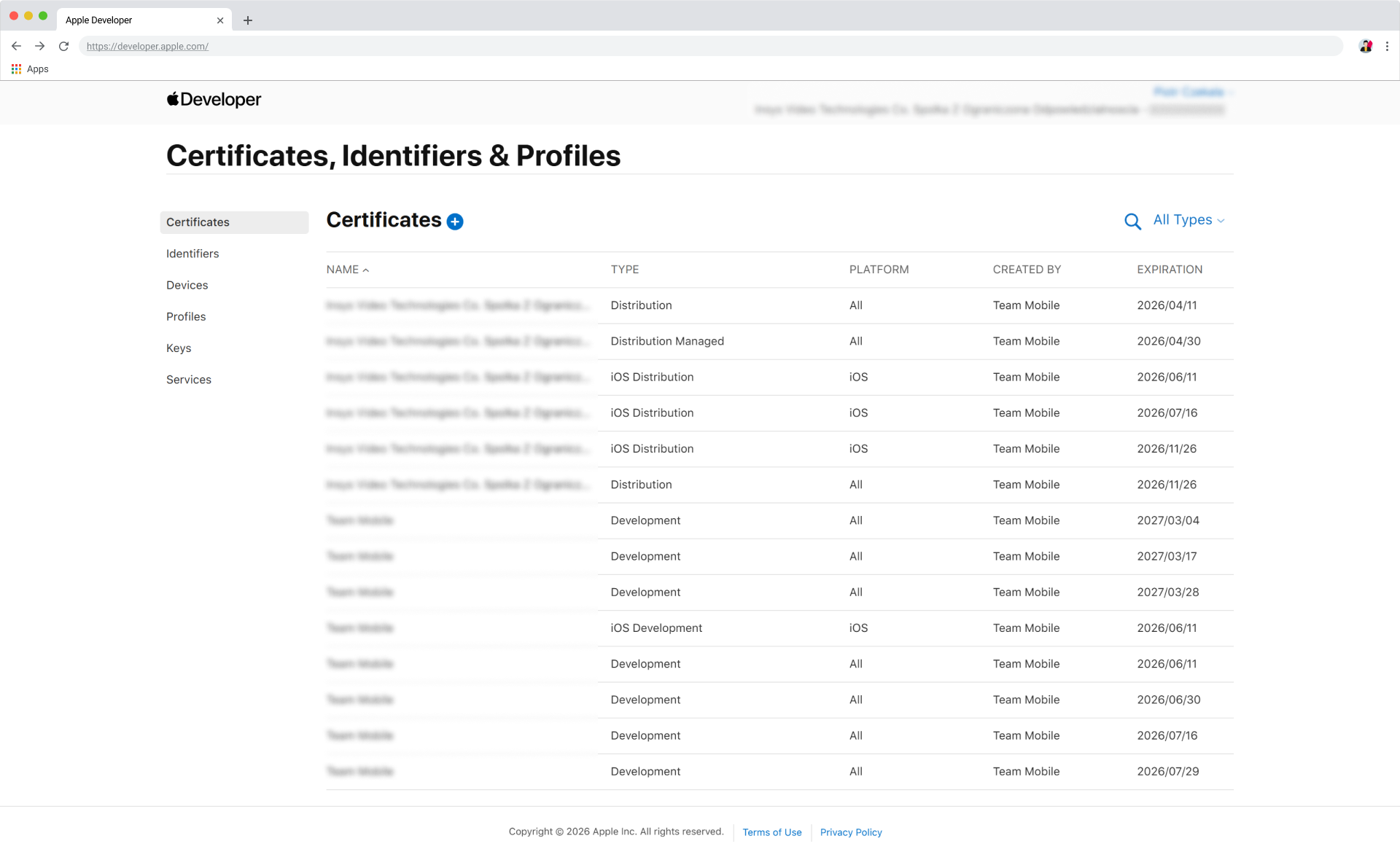
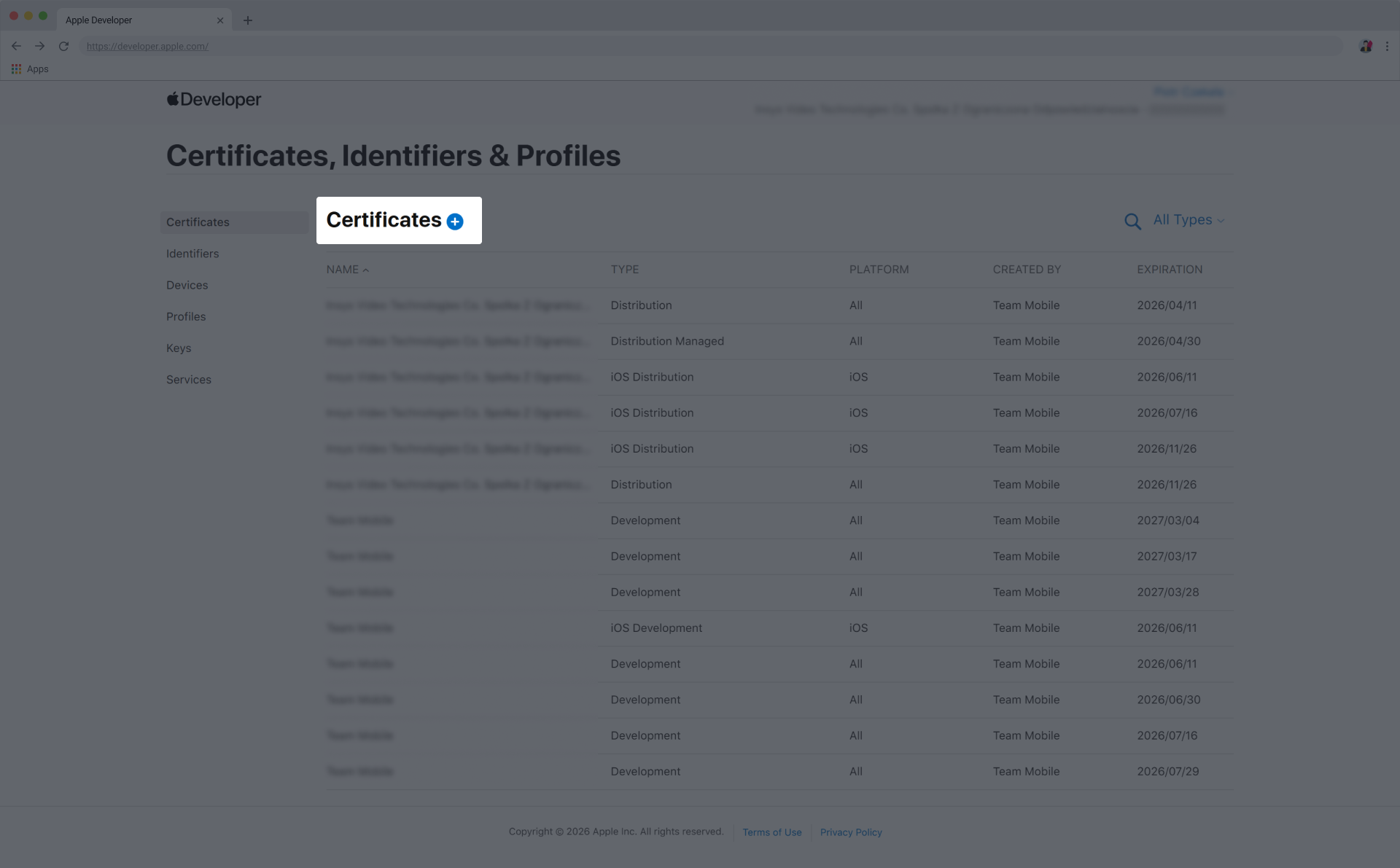
- Click + (add new certificate).
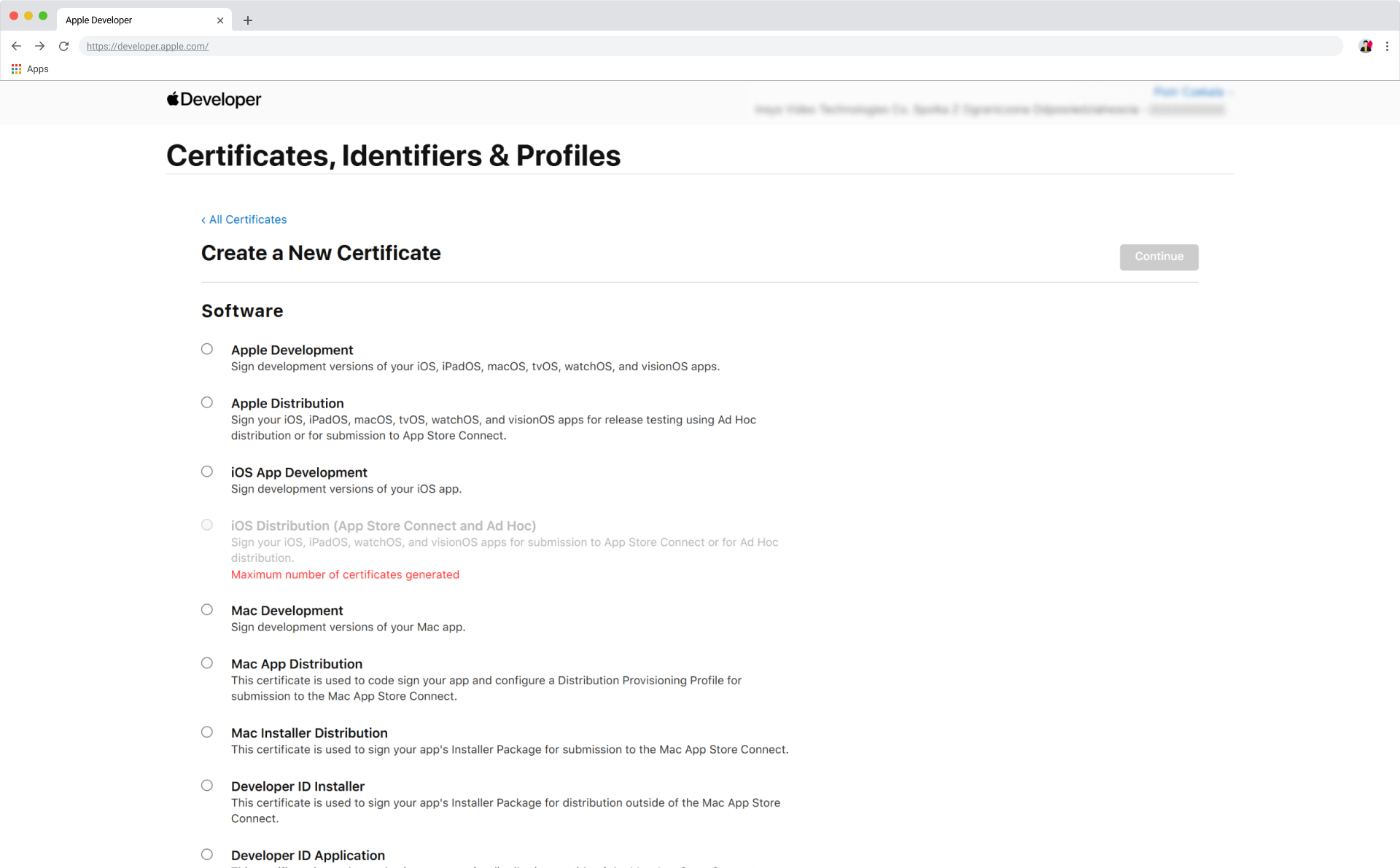
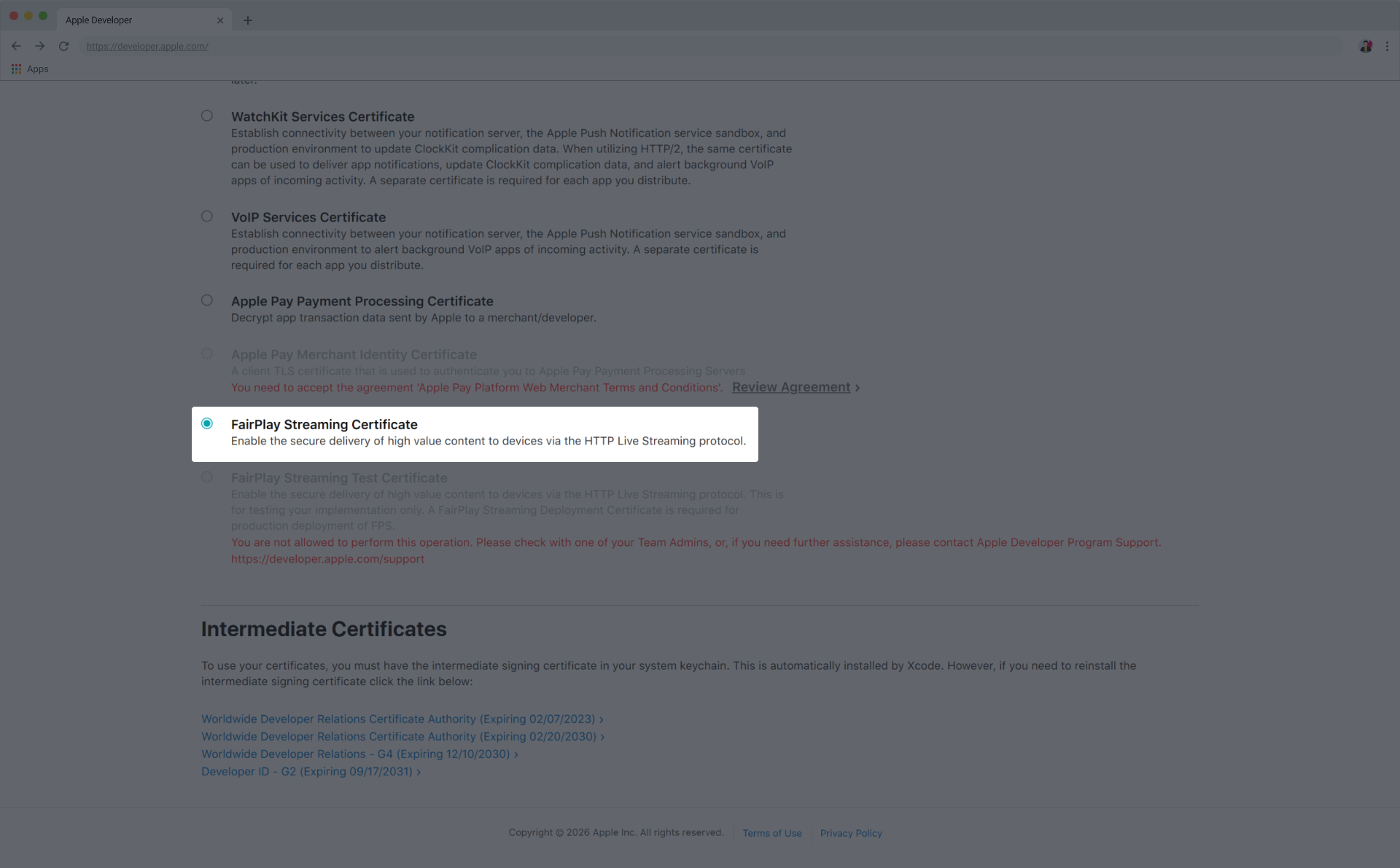
- Select FairPlay Streaming Certificate and click Continue.
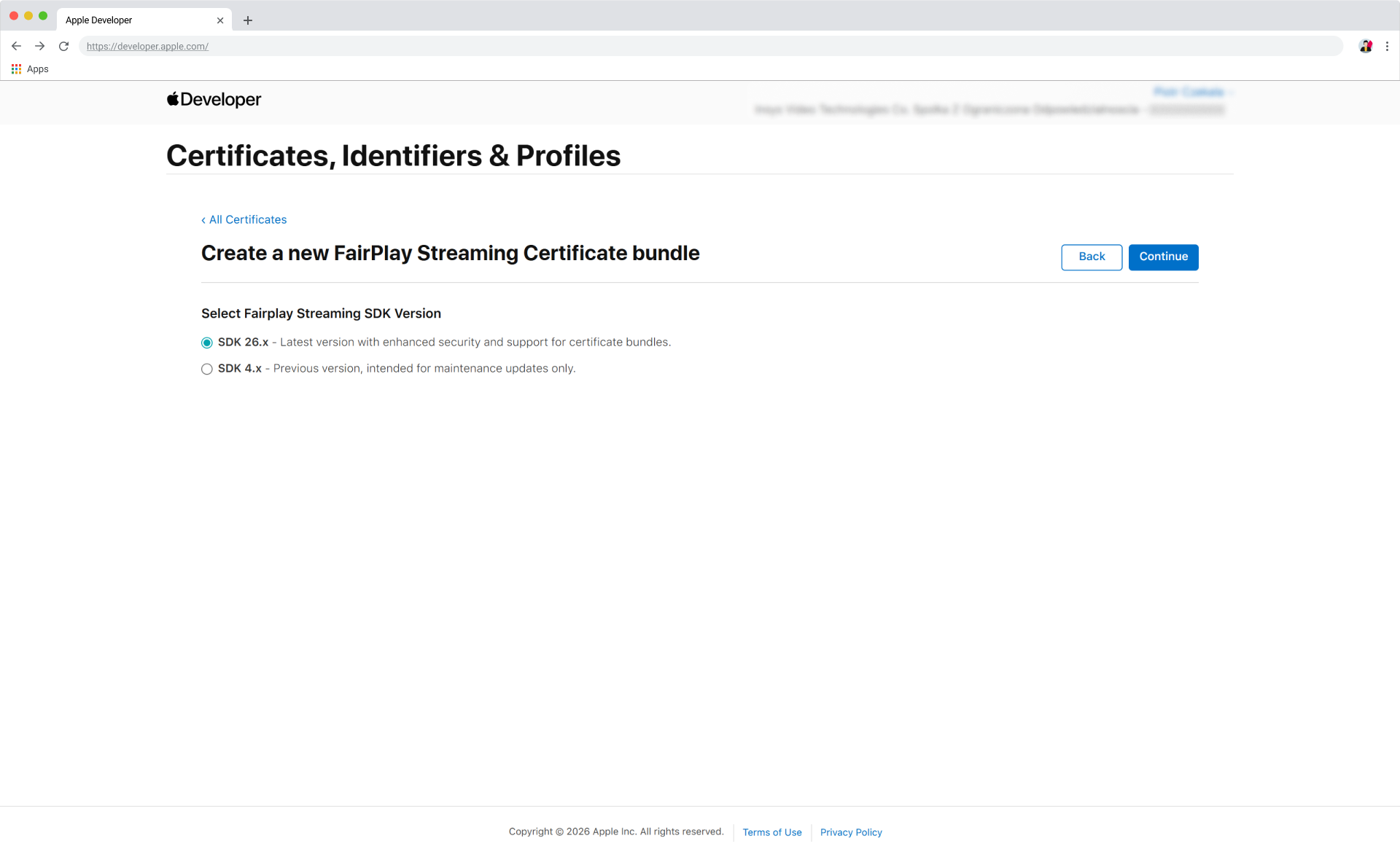
- Select the appropriate SDK version (SDK 26) and click Continue.
Upload CSRs
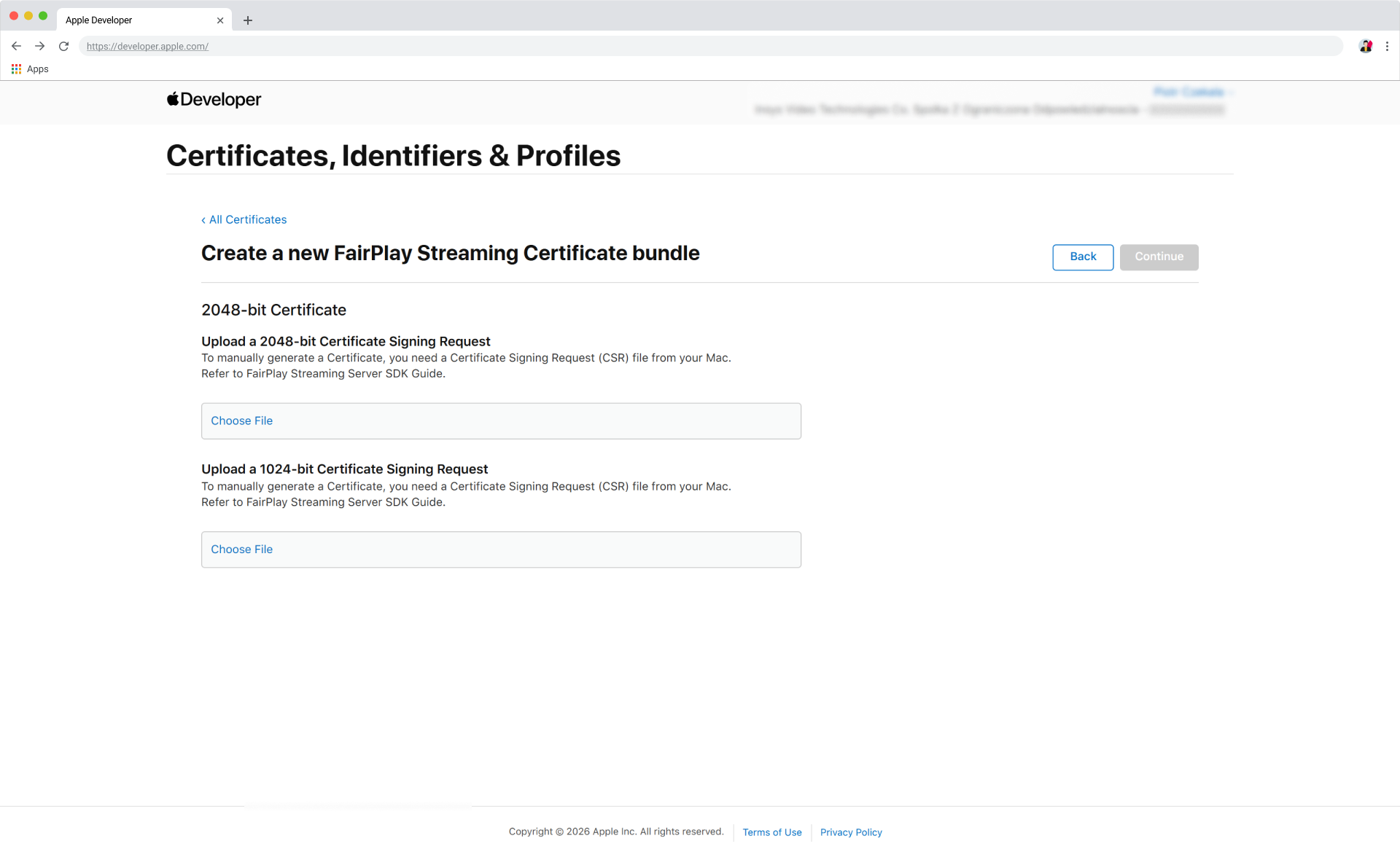
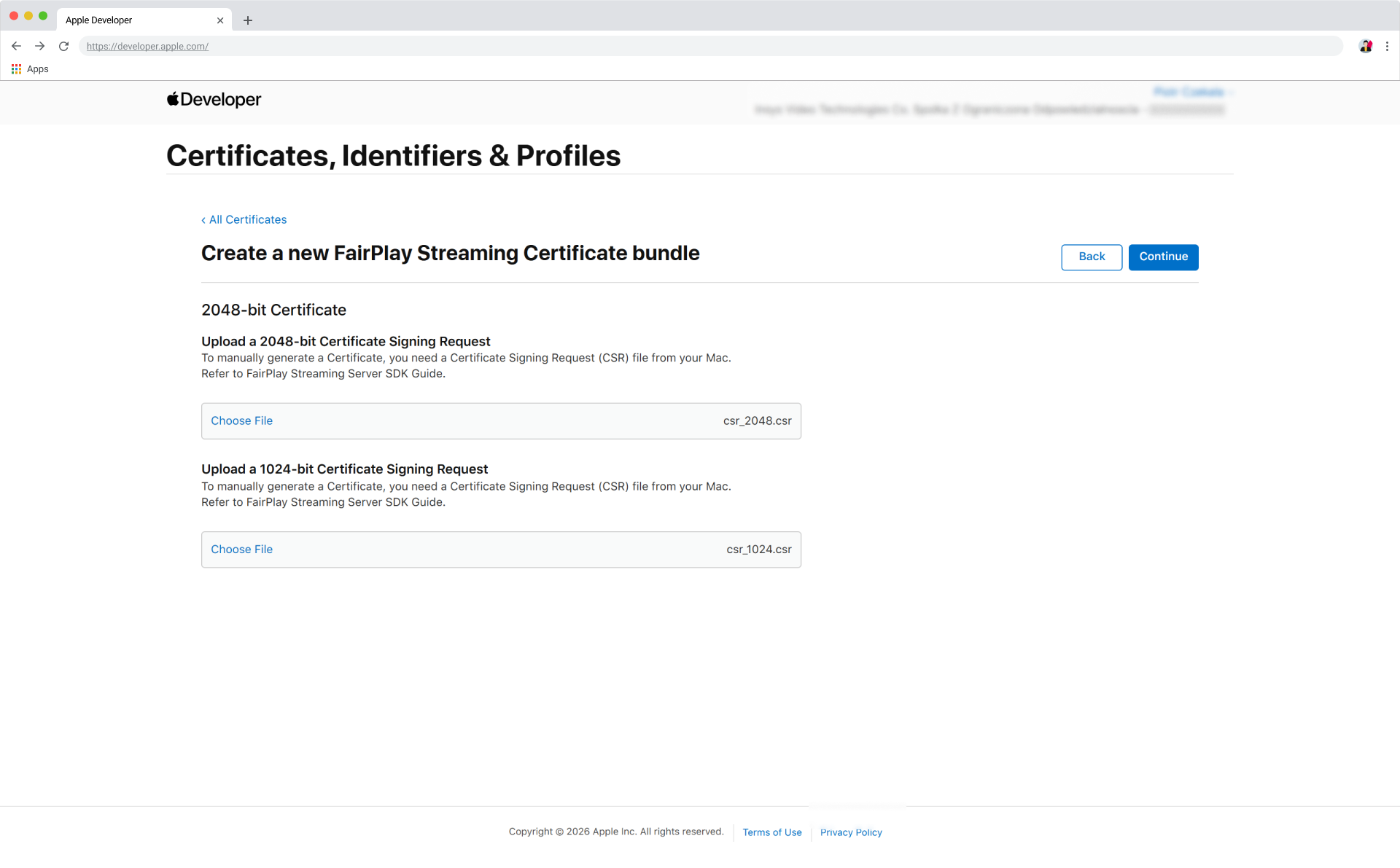
Upload both CSR files and click Continue.
- 2048-bit certificate → upload
csr_2048.csr. - 1024-bit certificate → upload
csr_1024.csr.
Download certificate bundle
Click Download.
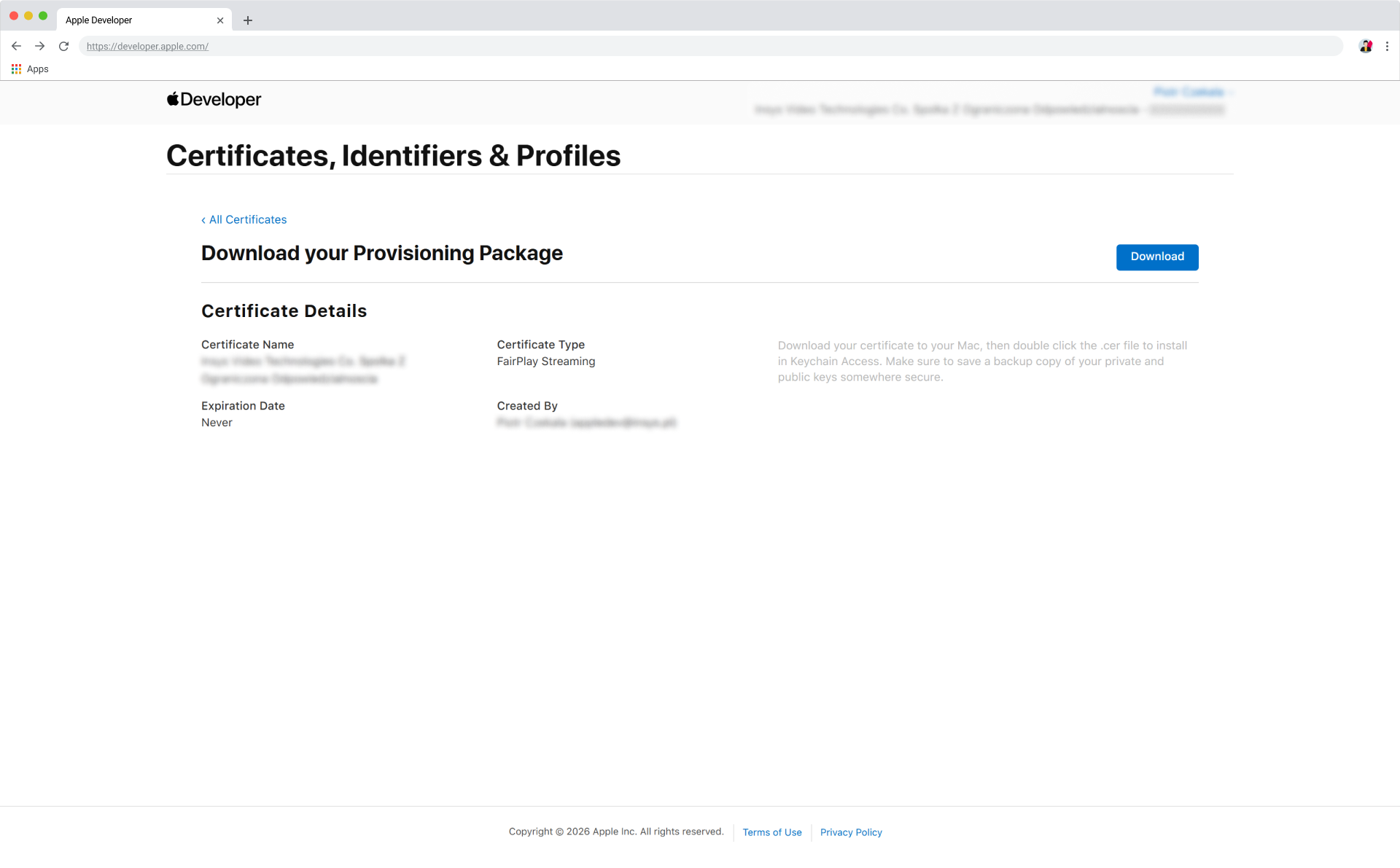
The downloaded file is named fps_bundle.zip.
Share files with Big Blue Marble
After completing the steps above, securely send Big Blue Marble the following data so we can configure your FairPlay DRM service:
csr_1024.csrpriv_key_1024.pemcsr_2048.csrpriv_key_2048.pemfps_bundle.zip, containingfps_certificate.bin&provisioning_data.bin- Passphrase(s) for the
.pemfiles
Please share all files and secrets using a secure communication channel. If you are unsure whether your channel is secure, contact Big Blue Marble for guidance.